Share a scene
Learn how to publish a processed Blurry scene so other people can view it through a public link.
Blurry scenes stay private until you turn on sharing. Once sharing is enabled, anyone with the active link can open the shared viewer and explore the scene in view only mode.
Wait for processing to finish
A scene must finish processing before you can share it.
Processing converts your uploaded 3D Gaussian Splatting model into browser-ready formats. See Performance and Streaming for more information about processing states.
Turn on sharing
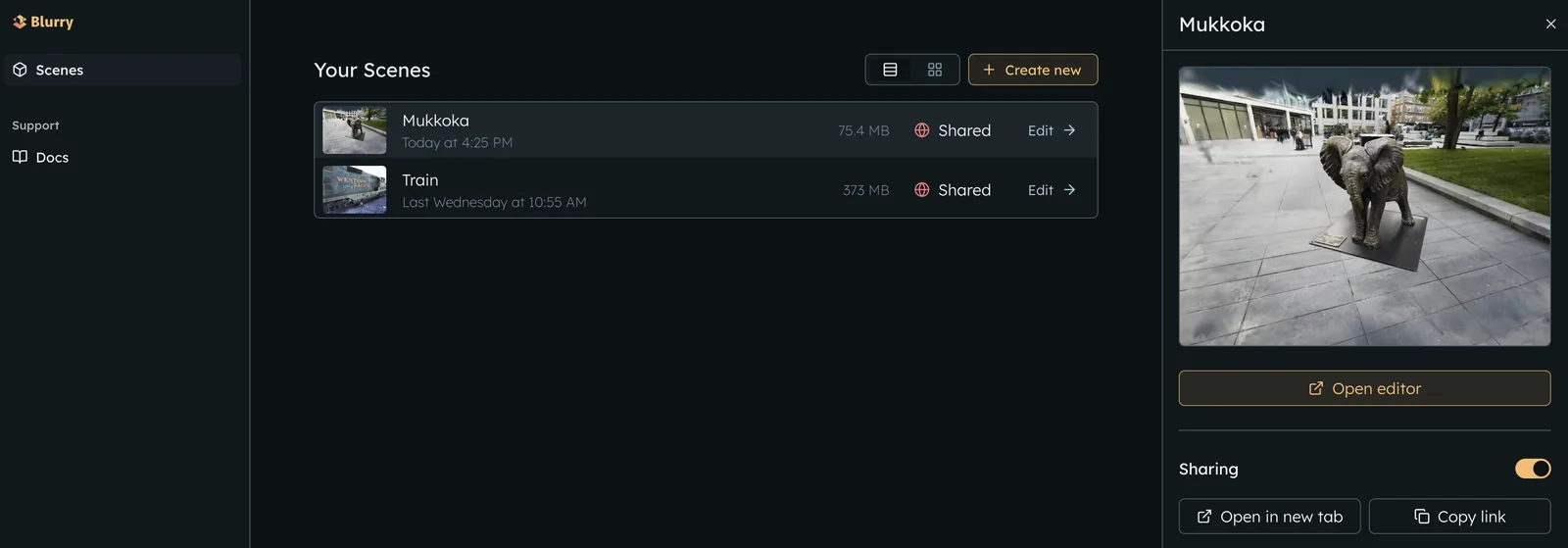
You can share a ready scene from the dashboard or from the editor.
From the dashboard, select the scene you want to share. In the sidebar, turn on the Sharing toggle and copy the share link.
From the editor, open the scene info tab, turn on the Sharing toggle and copy the share link.
Anyone with the active share link can view the scene. Turn off Sharing toggle when you no longer want the link to work.
Shared viewer
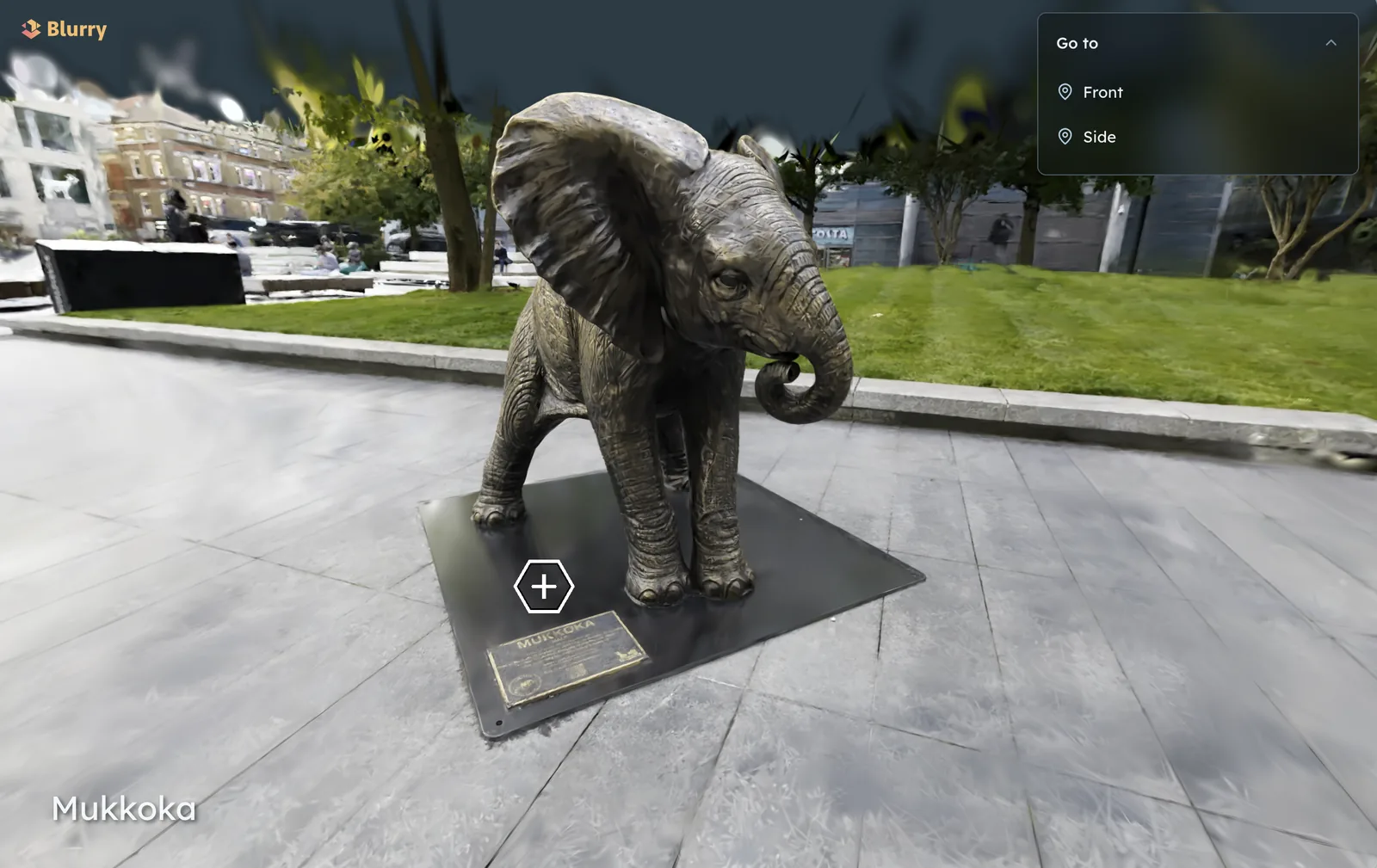
The share link opens the shared viewer, which is the view-only version of your scene.
Viewers can explore the scene, open annotations, use waypoints, and adjust available viewer controls in view only mode.
Use the share link for review, client handoff, documentation, and any destination that accepts a web link.
Manage additional links
Use Additional Links when you need separate share links for different audiences, placements, subcontractors, or third parties.
Use the button to create a new link. The name of the link is not visible to other users.
Keep the primary share link for your default public version. Use additional links when you want to disable, rotate, or track separate access paths without changing the main link.
Expiring links are useful when you want to limit the sharing period and automatically stop access after a set date.
Troubleshoot sharing
Start with processing status and link state when a share link does not work.
- Sharing is disabled: wait for processing to finish
- The link shows a 404: confirm that sharing is still enabled
- An older link stopped working: check whether that link was disabled, expired, or replaced
- The wrong scene opens: copy the link again from the scene's
Sharingsection