Uploading data
To upload 3D Gaussian Splatting data, you need to create a new scene.
In the main dashboard, click the to create a scene. In the modal, simply drag and drop your 3D Gaussian Splatting model.
Scene name
During the upload, you set the name of the scene for your future data.
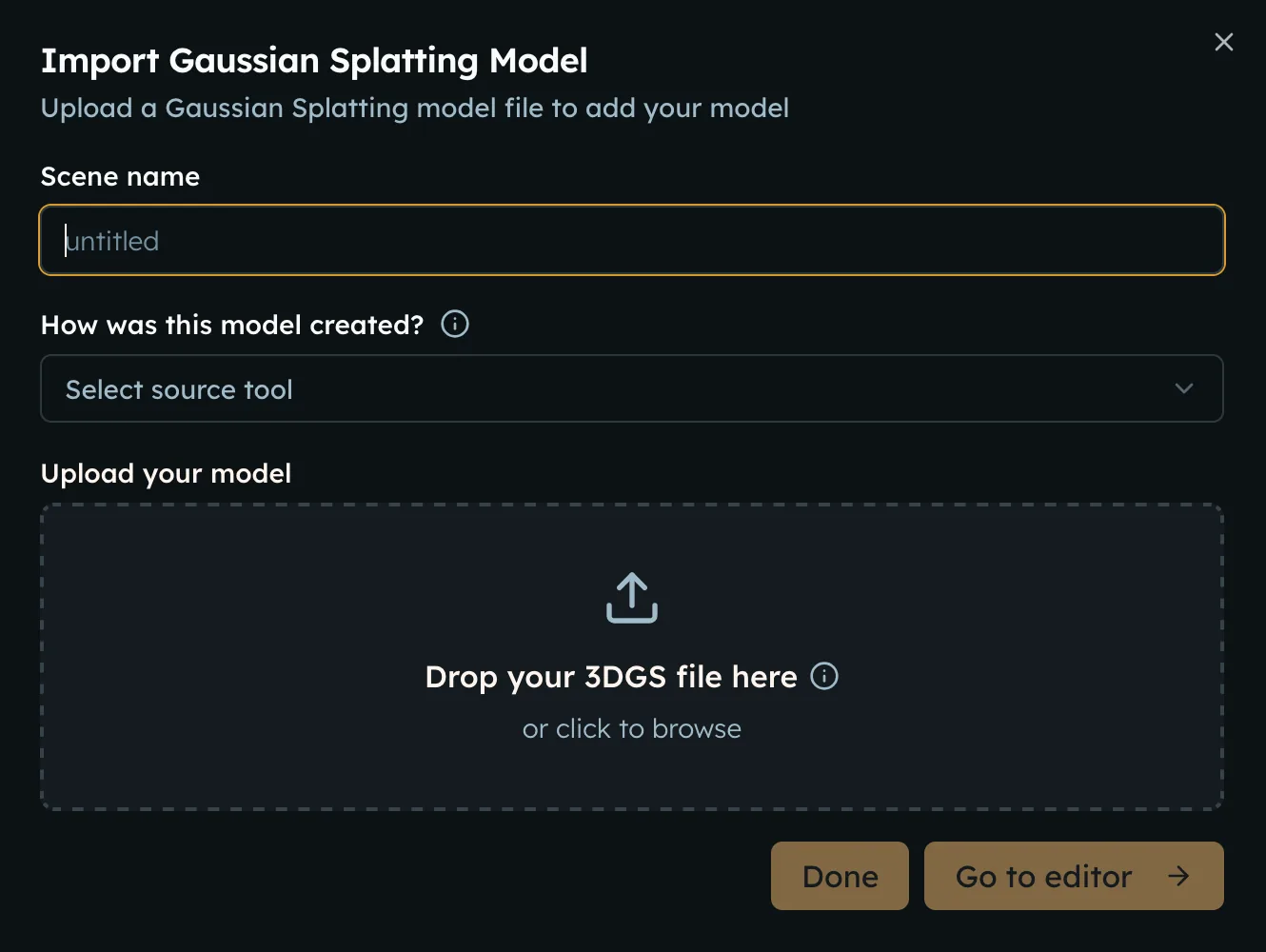
Source tool selection
Selecting a source tool is optional, but it helps us prepare your model for viewing faster and align it correctly when tools use different axis conventions.
Currently recognised tools:
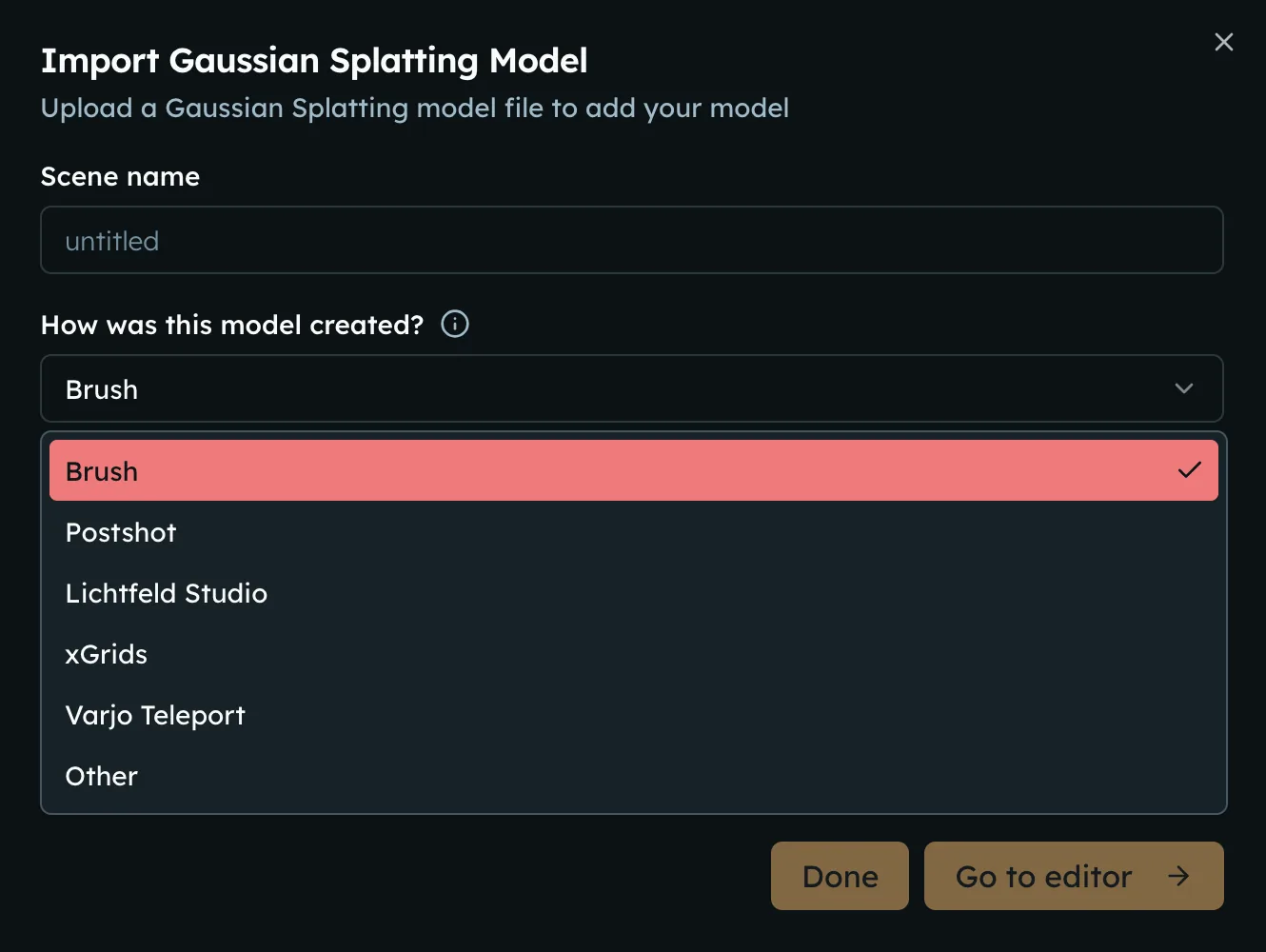
If you use other tools to create your splats, please let us know and we'll add them to the list!
Supported file formats
Our upload dialog accepts the following formats:
| Format | File extension | Description |
|---|---|---|
| raw PLY | .ply | Raw uncompressed 3DGS PLY file. Produced by most tools that generate 3DGS. |
| LCC2 (XGrids) | .zip | Contains exactly one .lcc2 file with sibling files in data/3dgs and optionally data/mesh |
Uploading multiple levels of detail
For large scenes, you can upload multiple .ply files as levels of detail. Blurry uses them to load certain parts of your model using the lower-detail versions, and progressively upgrade towards higher-detail variants.
Uploading additional variants is optional as Blurry generates additional lower-detail variants automatically. But you may want to upload variants on your own if you want more control over quality.
Maximum file size
There is no file size upper limit on what you can upload to Blurry.
Entering the editor during the upload
You can enter the editor as soon as Blurry has a renderable version of your model.
For raw .ply uploads under 4 million splats, this can happen immediately and the upload can continue in the background while you work.
For larger models and LCC2 uploads, you need to wait until the upload is done and a renderable lower-detail variant is generated.
Closing the modal during the upload
You can close the modal by clicking the button. Your upload will continue in the background and you will be able to observe the progress in the dashboard.